
On this page
Mach Armory (Pro)
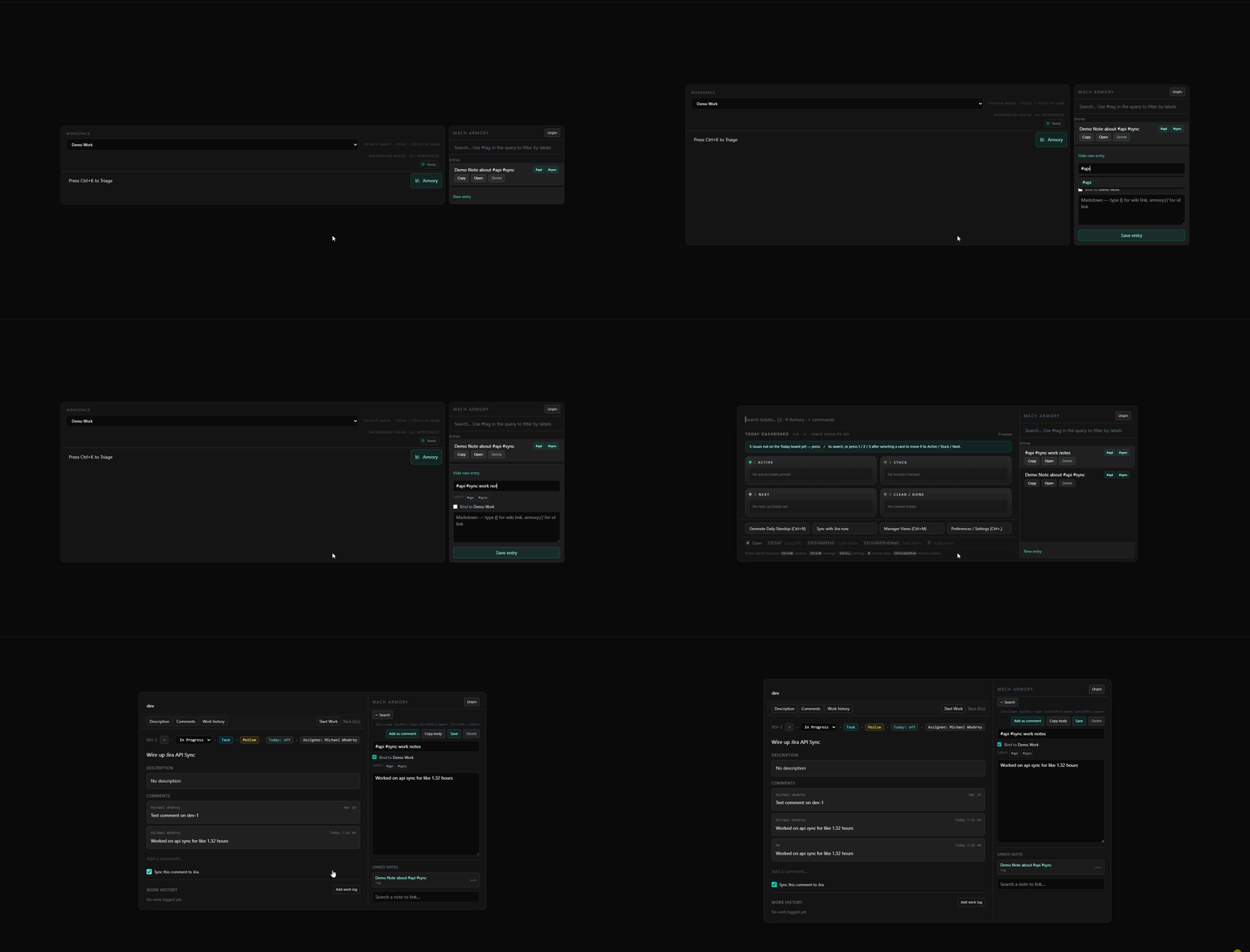
Mach Armory is a Pro-only workspace for searchable, local notes, snippets, and prompts, stored in the desktop app on your machine, not on our servers.
What you use it for
- Keep runbooks, standup templates, AI prompts, and scratch notes where you already triage tickets.
- Organize with #tags in the title (for example Weekly retro #team #may). Tags power search filters and inline suggestions.
- Use Markdown in the body for structure, lists, and pasted content.
Ways to open Armory
- Click Armory in the desktop header, or press Ctrl+Shift+K (Windows) / ⌘⇧K (Mac). If Armory is already open (floating or pinned), the same shortcut moves focus to the Armory search field.
- In the Triage command palette (Ctrl+K / ⌘K), open Views → Open Mach Armory. That closes the palette and opens Armory (or focuses search if it is already pinned).
- Search-driven entry from the palette: with the palette open and not in > command mode, type in the triage search box. When your text matches notes, an Armory group appears above the ticket list. Choosing a row pins Armory beside the palette if needed and opens that note in the editor, often in the palette's main column so you get a wide surface next to your tickets.
Pin, float, and dock side
- Pin to side docks Armory as a vertical strip. When the triage palette is open, the strip sits beside the palette; when the palette is closed, it sits beside the hub.
- Unpin (Float window) returns Armory to a centered floating panel. Your shortcut still opens it and focuses search.
- Choose whether the pinned strip sits on the left or right: open Preferences / Settings (Ctrl+, / ⌘, from the hub), go to the subscription area when you are on Pro, and under Pinned Armory select Right or Left.
Editor layout (pinned + palette)
When Armory is pinned and the triage palette is open, you can treat the note like a full-width detail view.
- Use the Main → / ← Sidebar control in the Armory header (wording flips based on dock side) to move the editor between the Armory strip and the palette's main column.
- Keyboard: Ctrl+Shift+L (Windows) / ⌘⇧L (Mac) toggles the same main vs sidebar layout while a note is open and a main column is available.
- With the editor open from the docked strip, Ctrl+Shift+K / ⌘⇧K jumps to search and, when it helps, shifts the editor toward the layout that keeps search reachable.
- Ctrl+S / ⌘S saves the open note; Escape backs out to search when focus is on the title or body (and you are not mid-way through an inline link picker; finish or cancel that first).
Browse, create, and clipboard
- Search: type text to find entries; add #label fragments to filter by tags. Label hints appear as you type; arrow keys and Enter accept a hint.
- From the search field, press Tab (when there are results and tag hints are not eating Tab) to move focus into the results list for keyboard navigation.
- Expand New entry, enter title (with optional #tags) and body, then Save entry. With Armory focused and you are not already editing, Ctrl+N / ⌘N starts a new draft.
- Copy on a row copies the note body; Open opens it in the editor.
Linking notes
Notes can relate through links you add and links the app maintains from shared #tags and from references in Markdown.
- In the body, type [[ to pick another entry by title, or armory:// / mach-armory:// plus an id fragment. Arrow keys and Enter insert; Escape cancels the fragment.
- Under Linked notes, Remove drops manual related links. Rows marked auto are rebuilt when you Save after you change shared tags or body references.
- Use Search a note to link… to add another manual related edge.
- Wiki titles must match the full saved title (case-insensitive); use an id link when titles are awkward.
Palette + Armory together
- If Armory is pinned and the note editor is in the palette main column, pressing Ctrl+K / ⌘K while focus is outside that column will first move focus into the editor; press again to toggle the palette as usual.
Standalone vault (optional)
Pro users can point Mach Triage at a shared markdown vault on disk (default ~/Mach/vaults/default) instead of the embedded SQLite notebook. Notes are .md files with a local search index, the same format as the standalone Mach Armory native app.
- In Settings → General, choose Embedded (default) or Standalone vault, set the folder, and optionally run Import embedded → vault once to migrate existing notes.
- Deep link
machtriage://armory?entry=<note-id>opens the note in Triage from other Mach apps. - For AI tooling on the vault, use mach-armory-mcp when standalone mode is on (see MCP docs).
When something goes wrong
- No Armory hits in the palette: make sure the line does not start with > (command mode turns off inline Armory search results).
- Armory locked: confirm Pro on your dashboard; the app checks your plan before search and save.
- Copy failed: the OS blocked the clipboard. Focus Mach Triage and retry.
- Note missing after open: it may have been removed; go back to search and confirm it still exists.